Back to homeTabvenir

From open tabs to kept ideas.

Save open tabs as local Markdown notes

Batch save browser tabs as local Markdown with images and source links. Open notes in Obsidian or send selected saved notes to Notion through an optional personal connection.

Available on the Chrome Web Store. No Tabvenir account needed. v0.0.4 · Chrome 144+

Reading, kept.Try a save with two sample pages
Your reading window
Choose what to keep3 open tabs
2 selected
field-guide.md

An example of your saved note

A field guide to useful ideas

Some pages deserve a place beyond a browser tab. Keep the idea, its context and its source, so you can return to it later.

Keep the parts that matter

  • A title you can find again
  • The original source link
  • Images saved with the note
Example sourcehttps://tabvenir.com/
An ordinary file. Ready to move.

This example uses sample pages. It does not read or change your browser tabs.

Batch save selected tabs as Markdown

Batch save multiple open browser tabs at once as local Markdown (.md) files or a ZIP archive with YAML frontmatter and local images for Obsidian, Notion and Gemini Notebook. As a zero-config Obsidian web clipper Chrome and Obsidian web clipper extension alternative, Tabvenir exports deterministic YAML frontmatter and clean Markdown (title, url, captured_at, headings, tables, code blocks) without fragile per-site Obsidian web clipper templates. Whether you compare a Markdown web clipper Chrome or Obsidian Markdown clipper workflow against MarkDownload Markdown clipper, Tabvenir focuses on Manifest V3 active-tab extraction, batch multi-tab .zip export, and preparing local .md files for downstream AI-assisted summary options in Gemini Notebook (NotebookLM) without a hosted Tabvenir AI service. Explicit desktop boundary: Tabvenir supports desktop Chromium browsers (Google Chrome and Microsoft Edge 144+) and does not run on iOS, Android, Safari, or Firefox.

1

Choose the pages

Pick the articles you want to keep from your open tabs.

2

Save to your own folder

Review the batch, then save Markdown and images together.

3

Decide what stays open

Close safely after saving, or keep the tabs open. It is your choice.

Keyboard shortcut: press Alt+Shift+K to open or toggle the Tabvenir side panel for the active tab, or customize shortcuts at chrome://extensions/shortcuts (edge://extensions/shortcuts in Edge).

Your reading.
In your own files.

Batch save browser tabs as local Markdown with images and source links. Open notes in Obsidian or send selected saved notes to Notion through an optional personal connection.

Choose a folder and save files directly. An Obsidian vault works as an ordinary folder.

Choosing a save folder
Obsidian & Notion guide

Tabvenir is an independent extension, not affiliated with or endorsed by Obsidian or Notion. Product names are used only to describe compatibility and belong to their respective owners.

What you take with youOutput example
Tabvenir / Clippings
  • field-guide.mdMarkdown
  • slow-reading.mdMarkdown
  • assets/Images referenced by your notes
Your exported files remain after uninstalling.

Saved first.
Closed with care.

Automatic closing is optional. Only saved tabs that pass safety checks can close. Your pinned research and unsaved input can stay right where they are.

How safe closing works
A clear result, every time
Two reading notes

Saved and ready to check

Saved
Your research tab

Pinned, so it stays open

Kept open

The batch report explains anything that needs attention. Interrupted saves can be resumed.

Your reading stays on your device.

No account, cloud library or hosted parser. Image downloads contact the original image hosts.

Read our privacy notes

Inside the Tabvenir extension

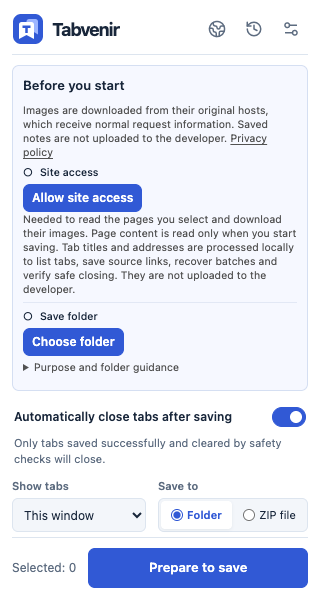
Tabvenir 0.0.1 side panel: site permission, save folder and optional safe closing. No pages are selected in this screenshot.

Free. No Tabvenir account required.

Welcome guide
Tabvenir 0.0.1 side panel: site permission, save folder and optional safe closing. No pages are selected in this screenshot.
Tabvenir 0.0.1 · English

Before your
first save.

All questions & answers

Which browsers are supported?

The current extension targets Chrome and Edge 144 or newer. Incognito mode, Firefox and Safari are not supported in this version.

Read in FAQ

Why does folder access need confirmation again?

The extension can remember a folder handle while the browser requires a new read/write permission confirmation. Use Reauthorize in the extension and allow access in the browser dialog.

Read in FAQ

Can I save without closing tabs?

Yes. Turn off Automatically close tabs after saving, even before choosing a folder. The preference is remembered for new batches; the confirmation page can change it for one batch.

Read in FAQ

Does this work with Obsidian?

Save into an Obsidian vault folder. Configure the vault name and note path in Tabvenir, then use Open in Obsidian. Automatic opening after saving is optional. Extract ZIP files into the vault first, keeping the assets folder.

Read in FAQ

Can I import saved pages into Notion?

Save locally first. In Tabvenir settings, connect your Notion account using a personal connection token and a target page shared with that connection. Click Save to Notion to send selected saved text, source links and images. Reconnect after restarting the browser. Manual Markdown import remains available.

Read in FAQ

Start with a few good pages.

Keep the ideas. Make space for the next one.

Add to Chrome
field-guide.md

A sample Markdown note

A field guide to useful ideas

Some pages deserve a place beyond a browser tab. Keep the idea, its context and its source, so you can return to it later.

Keep the parts that matter

Example source: https://tabvenir.com/