From open tabs to kept ideas.

Save open tabs as local Markdown notes

Batch save Chrome and Edge tabs as local Markdown with images and source links. Use an Obsidian vault or manually import files into Notion. Export a folder or ZIP.

Available on the Chrome Web Store. No Tabvenir account needed. v0.0.1 · Chrome 144+

Reading, kept.Try a save with two sample pages
Your reading window
Choose what to keep3 open tabs
2 selected
field-guide.md

An example of your saved note

A field guide to useful ideas

Some pages deserve a place beyond a browser tab. Keep the idea, its context and its source, so you can return to it later.

Keep the parts that matter

  • A title you can find again
  • The original source link
  • Images saved with the note
Example sourcehttps://tabvenir.com/
An ordinary file. Ready to move.

This example uses sample pages. It does not read or change your browser tabs.

Batch save selected tabs as Markdown

1

Choose the pages

Pick the articles you want to keep from your open tabs.

2

Save to your own folder

Review the batch, then save Markdown and images together.

3

Decide what stays open

Close safely after saving, or keep the tabs open. It is your choice.

Your reading.
In your own files.

Save Markdown in an Obsidian vault, manually import it into Notion, or read it in your editor. You choose where the reading goes.

Choose a folder and save files directly. An Obsidian vault works as an ordinary folder.

Choosing a save folder
Obsidian & Notion guide

Tabvenir is an independent extension, not affiliated with or endorsed by Obsidian or Notion. Product names are used only to describe compatibility and belong to their respective owners.

What you take with youOutput example
Tabvenir / Clippings
  • field-guide.mdMarkdown
  • slow-reading.mdMarkdown
  • assets/Images referenced by your notes
Your exported files remain after uninstalling.

Saved first.
Closed with care.

Automatic closing is optional. Only saved tabs that pass safety checks can close. Your pinned research and unsaved input can stay right where they are.

How safe closing works
A clear result, every time
Two reading notes

Saved and ready to check

Saved
Your research tab

Pinned, so it stays open

Kept open

The batch report explains anything that needs attention. Interrupted saves can be resumed.

Your reading stays on your device.

No account, cloud library or hosted parser. Image downloads contact the original image hosts.

Read our privacy notes

Inside the Tabvenir extension

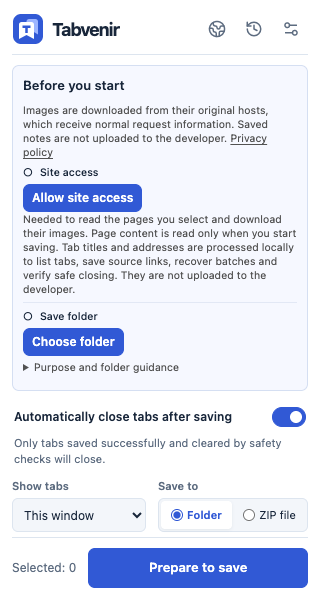
Tabvenir 0.0.1 side panel: site permission, save folder and optional safe closing. No pages are selected in this screenshot.

Free. No Tabvenir account required.

Welcome guide
Tabvenir 0.0.1 side panel: site permission, save folder and optional safe closing. No pages are selected in this screenshot.
Tabvenir 0.0.1 · English

Before your
first save.

All questions & answers

Which browsers are supported?

The current extension targets Chrome and Edge 144 or newer. Incognito mode, Firefox and Safari are not supported in this version.

Read in FAQ

Why does folder access need confirmation again?

The extension can remember a folder handle while the browser requires a new read/write permission confirmation. Use Reauthorize in the extension and allow access in the browser dialog.

Read in FAQ

Can I save without closing tabs?

Yes. Turn off Automatically close tabs after saving, even before choosing a folder. The preference is remembered for new batches; the confirmation page can change it for one batch.

Read in FAQ

Does this work with Obsidian?

Yes. Save into a folder in your Obsidian vault, or extract a ZIP there with its assets folder. Notes are ordinary Markdown files. Open them from the vault; automatic opening is not available in the published version.

Read in FAQ

Can I import saved pages into Notion?

Yes. Export Markdown, then in Notion on desktop or web choose Settings → Import → Text & Markdown and select the .md files. Check images and formatting after import. Direct Notion saving is not available in the published version.

Read in FAQ

Start with a few good pages.

Keep the ideas. Make space for the next one.

Add to Chrome
field-guide.md

A sample Markdown note

A field guide to useful ideas

Some pages deserve a place beyond a browser tab. Keep the idea, its context and its source, so you can return to it later.

Keep the parts that matter

Example source: https://tabvenir.com/